
Imagine watching your favorite movie or listening to music while your room's lighting changes to match the atmosphere. With compatible smart lighting, you can create a more immersive entertainment experience without completely redesigning your living room.
Learning how to sync smart lights with music, movies, and TV starts with choosing the right lighting system and understanding how it connects to your entertainment devices. Some systems react to music, while others analyze on-screen colors or use dedicated entertainment hardware.
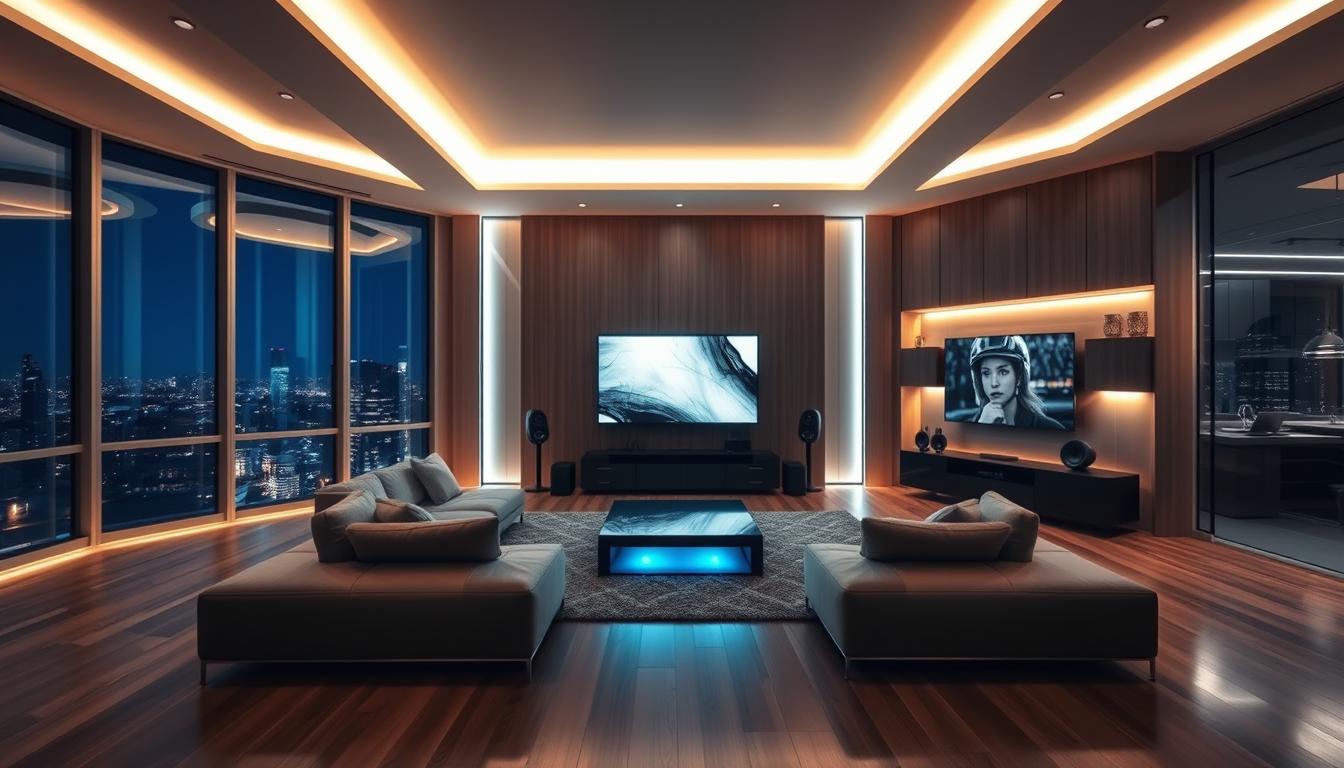
In this guide, you will learn how music synchronization works, what equipment you may need, how to set up movie lighting, and how to troubleshoot common connection problems.
Key Takeaways
- Choose smart lights that support music or screen synchronization.
- Check whether your setup requires a bridge, app, camera, or HDMI sync box.
- Use the appropriate synchronization method for music, movies, or gaming.
- Adjust brightness, colors, and response intensity to suit your room.
- Check device compatibility before purchasing additional equipment.
How Smart Lighting Synchronization Works
Smart lighting synchronization connects compatible lights to entertainment content so their colors and brightness can change in response to music or images. The exact process depends on the system you use.
Music Synchronization
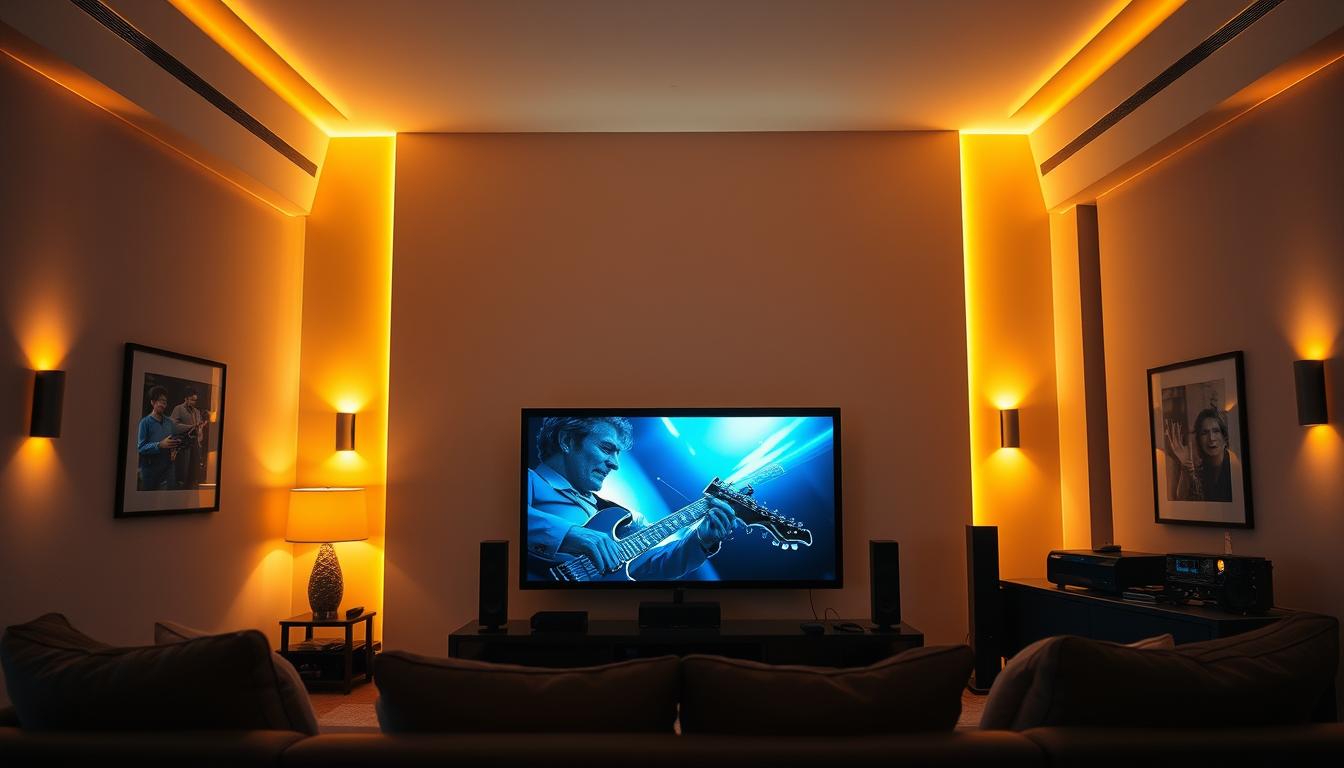
Music synchronization makes compatible lights change color, brighten, dim, or pulse in time with a song. Some systems analyze audio, while others use a dedicated app or music integration to coordinate lighting effects.
For example, Philips Hue supports music synchronization through its Spotify integration. This setup requires compatible color-capable lights and a Hue Bridge. You can learn more in the official Philips Hue and Spotify guide.
Screen Synchronization
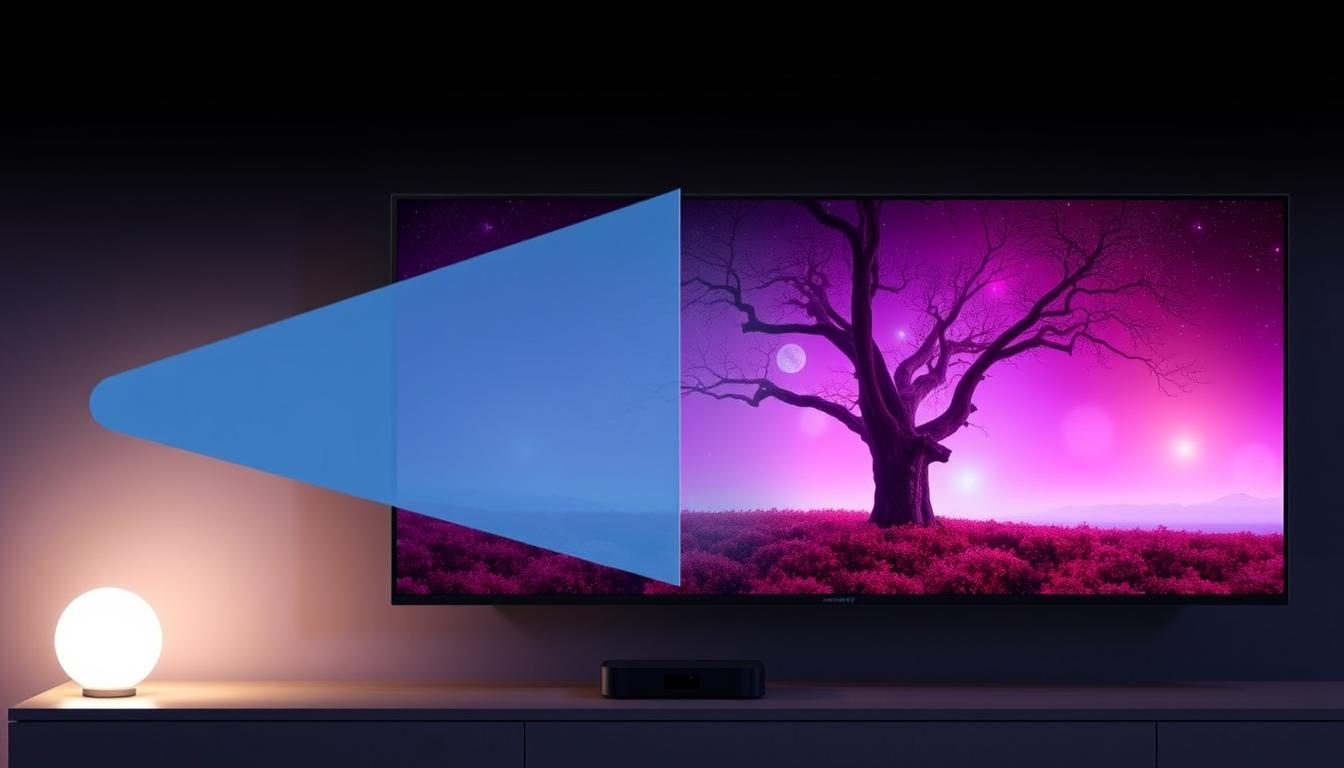
Screen synchronization adjusts lighting according to the colors displayed on a TV or computer screen. Depending on the system, this may involve a screen-capturing device, compatible TV app, desktop software, or HDMI sync box.
These options are not interchangeable. Before choosing one, check whether it supports your TV's built-in streaming apps or only external HDMI devices.
What Equipment Do You Need?
The equipment you need depends on the type of synchronization you want. A basic music setup may require only compatible lights and an app, while a multi-light entertainment area may need a bridge or additional accessories.
1. Compatible Smart Lights
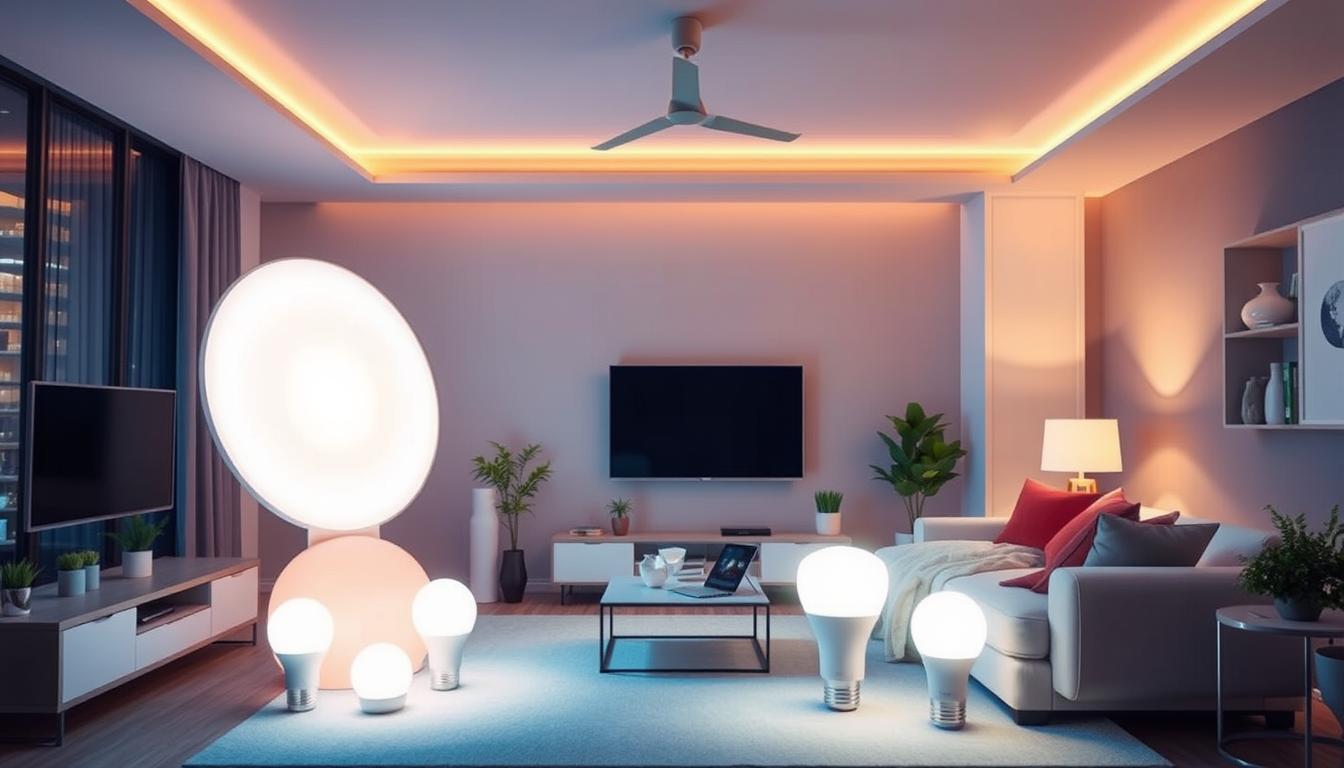
Choose color-capable smart bulbs, LED strips, or light bars that support your preferred synchronization method. Philips Hue and LIFX offer different lighting features, but compatibility varies by product and app.
Before buying, check whether the lights support music synchronization, screen synchronization, or only standard color and brightness controls.
2. A Bridge or Control Hub
Some lighting systems use a bridge to connect multiple lights and enable advanced features. Other products connect directly over Wi-Fi or Bluetooth, depending on the model.
For Philips Hue music synchronization, a Hue Bridge and compatible color lights are required. Always check the manufacturer's requirements before purchasing a hub.
3. An App or Entertainment Sync Device
A compatible app may be enough to synchronize lights with music or content on a computer. For certain TV setups, you may need a dedicated device that analyzes the video signal.
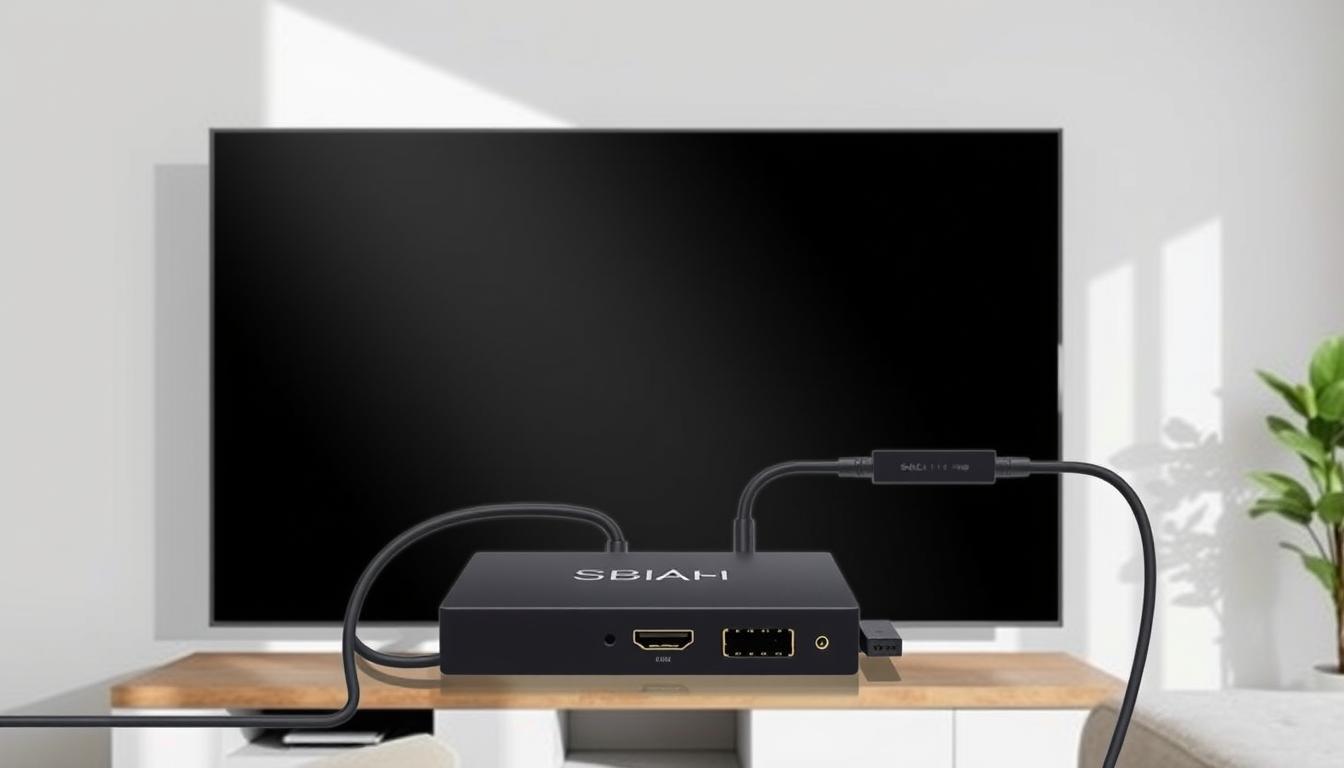
An HDMI sync box is one option for external devices such as streaming players and game consoles. However, an HDMI sync box does not automatically synchronize content from every built-in smart TV app.
For a detailed compatibility check, visit the official Philips Hue Sync compatibility page.
How to Sync Smart Lights with Music
Music synchronization is a useful way to create a lively atmosphere for parties, workouts, or casual listening. Follow these steps, using the instructions for your specific lighting system.
Method 1: Philips Hue and Spotify
- Install and set up your compatible Philips Hue color lights.
- Connect your Hue Bridge and lights according to the manufacturer's instructions.
- Open the Philips Hue app and create an Entertainment area if prompted.
- Open the Sync section and follow the instructions to connect your Spotify account.
- Start playing a song or playlist on a device signed in to your Spotify account.
- Start synchronization and adjust the lighting intensity, brightness, and color palette.
Menu names may vary with app updates. If you cannot find the synchronization option, check the official setup instructions and confirm that your lights and bridge are compatible.
Method 2: LIFX with Samsung SmartThings
Some LIFX lights can use the Music Sync feature in SmartThings on compatible Samsung Galaxy devices.
- Connect your LIFX lights to the SmartThings app.
- Open the Life section and look for Music Sync.
- Follow the on-screen instructions and select LIFX as the lighting partner.
- Choose the available lights you want to synchronize.
- Start playing music and select Start syncing.
- Adjust the available color palette and intensity settings.
This method is device-specific, so check the official LIFX instructions before relying on it.
Choose Colors for Different Music Styles
There is no single correct lighting palette for each music genre. Use the following suggestions as a starting point and adjust them to your taste.
| Music Style | Suggested Lighting | Brightness |
|---|---|---|
| Jazz | Warm amber and soft gold | Low to medium |
| Pop | Vivid, changing colors | Medium to high |
| Classical | Soft white and muted colors | Low to medium |
| Electronic | Blue, purple, and magenta | Medium to high |
How to Sync Smart Lights with Movies and TV
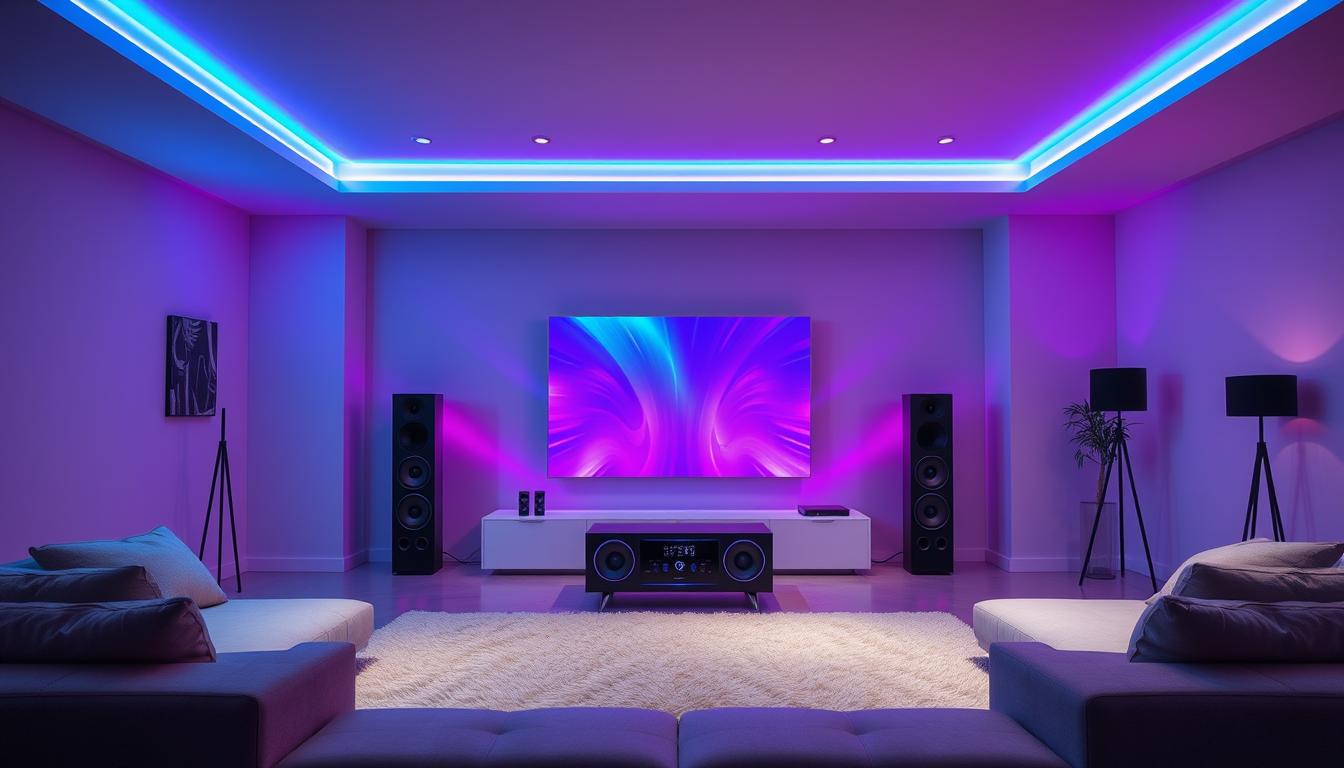
Movie synchronization can extend the colors on your screen into the surrounding room. The correct setup depends on whether you watch through your TV's built-in apps, an external streaming device, or a computer.
Option 1: Use a Compatible TV Sync App
Some compatible televisions support a dedicated lighting synchronization app. This can be convenient because it may work directly with streaming apps installed on the TV.
Compatibility depends on the TV brand, model, operating system, and lighting system. Confirm the supported models before purchasing any additional equipment.
Option 2: Use an HDMI Sync Box
An HDMI sync box sits between a compatible external media device and your television. It analyzes the incoming video signal and coordinates supported lights with the content.
- Confirm that your streaming device or console is compatible with the sync box.
- Connect the external HDMI device to the sync box.
- Connect the sync box to your TV using the recommended HDMI connection.
- Set up your lights and entertainment area in the manufacturer's app.
- Enable synchronization and adjust the response settings.
Important: Built-in TV apps do not send their video through an external HDMI sync box. If you use apps such as Netflix directly on your television, choose a compatible TV app or a screen-sync solution instead.
See the Philips Hue Sync setup guide for a comparison of available options.
Option 3: Synchronize Lights with a Computer
If you watch movies or play games on a Windows PC or Mac, check whether your lighting brand offers desktop synchronization software. Supported software can coordinate lights with content displayed on your computer.
Check operating-system requirements, supported lights, and any necessary bridge before installation.
How to Position Smart Lights for the Best Effect
Good placement can improve the overall effect without requiring more lights.
- Behind the TV: Place a compatible light strip behind the screen to create a soft halo.
- Beside the screen: Use light bars or lamps to extend the colors into the room.
- Around the seating area: Position additional lights where they create a balanced atmosphere without shining directly into your eyes.
- Avoid glare: Keep bright lights out of the direct line of sight while watching a movie.
- Start with moderate brightness: Increase the intensity gradually until the effect feels comfortable.
Best Lighting Settings for Movie Night and Gaming
For a comfortable movie night, start with dim ambient lighting and moderate color intensity. You can use a warm, steady scene when you want less distraction, or enable dynamic synchronization for action scenes and games.
For gaming, experiment with response intensity and color saturation. If frequent flashes or rapid changes feel distracting, choose a slower or less intense setting where available.
For parties, brighter colors and more energetic effects may suit the atmosphere. For quiet evenings, a static scene may be more relaxing than continuous synchronization.
Common Smart Lighting Sync Problems and Fixes
My Lights Will Not Synchronize
- Confirm that the lights support the synchronization feature you are trying to use.
- Check that the lights and bridge are connected to the required network.
- Restart the app and check for firmware or software updates.
- Verify that the correct lights or entertainment area are selected.
The Lights Do Not Match My TV Screen
- Check whether your setup supports built-in TV apps or only HDMI-connected devices.
- Confirm that the video source is connected through the correct equipment.
- Review the manufacturer's compatibility list for resolution and video-format limitations.
The Lighting Effects Are Too Intense
- Reduce brightness and synchronization intensity.
- Choose a less saturated color palette if the app supports it.
- Move lights away from your direct line of sight.
- Use a static scene when you prefer a calmer viewing experience.
Frequently Asked Questions
Can I sync smart lights with music without an HDMI sync box?
Yes. Music synchronization can work through a compatible lighting app or music integration. An HDMI sync box is generally used for supported video sources rather than ordinary music synchronization.
Can I sync smart lights with Netflix on my TV?
Yes, with a compatible setup. Options may include a supported TV synchronization app or a screen-sync system. An HDMI sync box alone cannot capture video from an app running directly on the TV.
Can I create different lighting effects for movies, parties, and gaming?
Many smart lighting apps let you save or select scenes with different colors and brightness levels. Dynamic synchronization features and available presets vary by brand and device.
Do all smart bulbs support music synchronization?
No. Basic smart bulbs may support color and brightness control without offering music or screen synchronization. Check the exact product specifications before buying.
Where should I place lights for a home theater?
Start with a light strip behind the TV or a pair of light bars beside the screen. Position the lights to create indirect illumination and reduce glare, then add more lights if your system supports them.
Conclusion
Syncing smart lights with music, movies, and TV can make a home entertainment setup more immersive. The best method depends on your lights, your media source, and the features supported by your devices.
Start by checking compatibility, choose the appropriate music or screen synchronization method, and adjust brightness and colors to suit your room. With the right setup, you can create a personalized entertainment atmosphere without unnecessary equipment or complicated installation.